Changelog

Follow new updates and improvements to OnCare.

September 21st, 2026

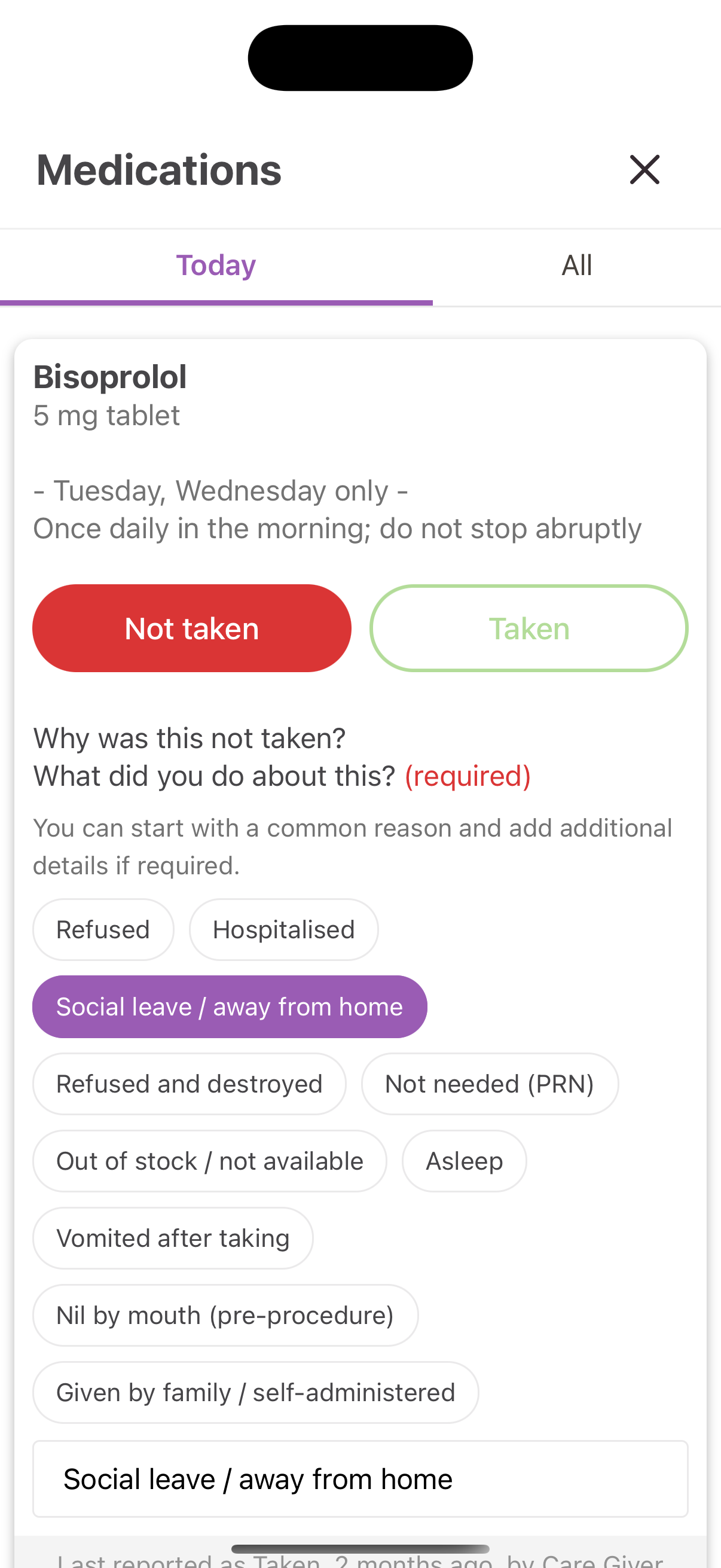
We’ve just released Medication Not Taken Reasons, so a missed dose never has to be a mystery.

How it works

When a care worker marks a medication as Not taken on their phone during a visit with a medication task, they still have to explain why the medication was not taken, that hasn’t changed. Now they can pick from ten common reasons to fill in that explanation in seconds, or type their own. it is easier for you to track and for inspectors to audit.

  • Refused

  • Hospitalised

  • Social leave / away from home

  • Refused and destroyed

  • Not needed (PRN)

  • Out of stock / not available

  • Asleep

  • Vomited after taking

  • Nil by mouth (pre-procedure)

  • Given by family / self-administered

Where it shows up

Reasons now show up next to the medication on the visit report, as a red-ringed highlight on the client’s Medication History table, and you can click through to a full month of history to spot patterns.

On the Compliance Dashboard

Two new cards break this down at agency level. Missed medication reasons shows why medication was not taken across whichever period you select, and Medication shows the daily trend split by reason. Both make it easy to spot patterns, for example refusals concentrating on one client or one time of day, without opening individual visit reports.

Questions? Contact your account manager.

Write a comment...

September 18th, 2026

We’ve released Care Permissions, a more in-depth way to control which clients an office staff member is allowed to edit. It only ever affects editing, viewing a client’s full care profile is always available to every office staff member, with no exceptions and no configuration needed.

This gives you tighter control over who can change what in a client’s record, without restricting who can simply look at it. For example, you can let a newly onboarded coordinator see everything so they can get up to speed, but only let them make changes for the handful of clients they have actually been assigned, while everyone else’s records stay uneditable to them until a manager opens them up.

What it covers

Care Permissions controls edit access to these areas of a client’s record: Summary, Care Plan, Risk Assessment, Reviews, Communication log, Medication, Key contacts, Documents, Reminders, Groups, and Friend/family (decision maker) access.

It does not touch Rota/scheduling, Visit Reports, or Invoicing, those are governed by separate permissions.

Who this applies to

Care Permissions is an office staff setting only. It has no effect on care workers, their access to a client is entirely based on whether they are rostered to that client, a separate and unrelated part of the product. Decision makers and clients are unaffected too.

Set a staff member’s Care profile permission

Go to People, then Office staff, and open the staff member’s profile. Under the Permissions section you will see a Care profile permission setting with three options:

  • All clients: can edit every client’s care profile. This is the default for every new office staff member.

  • Selected clients: can edit only the specific clients a manager has ticked for them. Every other client is view-only for that person.

  • No clients: can view everything, but can’t edit anything.

Managers always have full access

Anyone with manager access always has full edit access to every client, regardless of this setting. On a manager’s own profile the three options are shown greyed out and disabled, because there is nothing to configure. You can edit configuration inside the office staff you want to change. Only a manager can see this section.

Choose specific clients

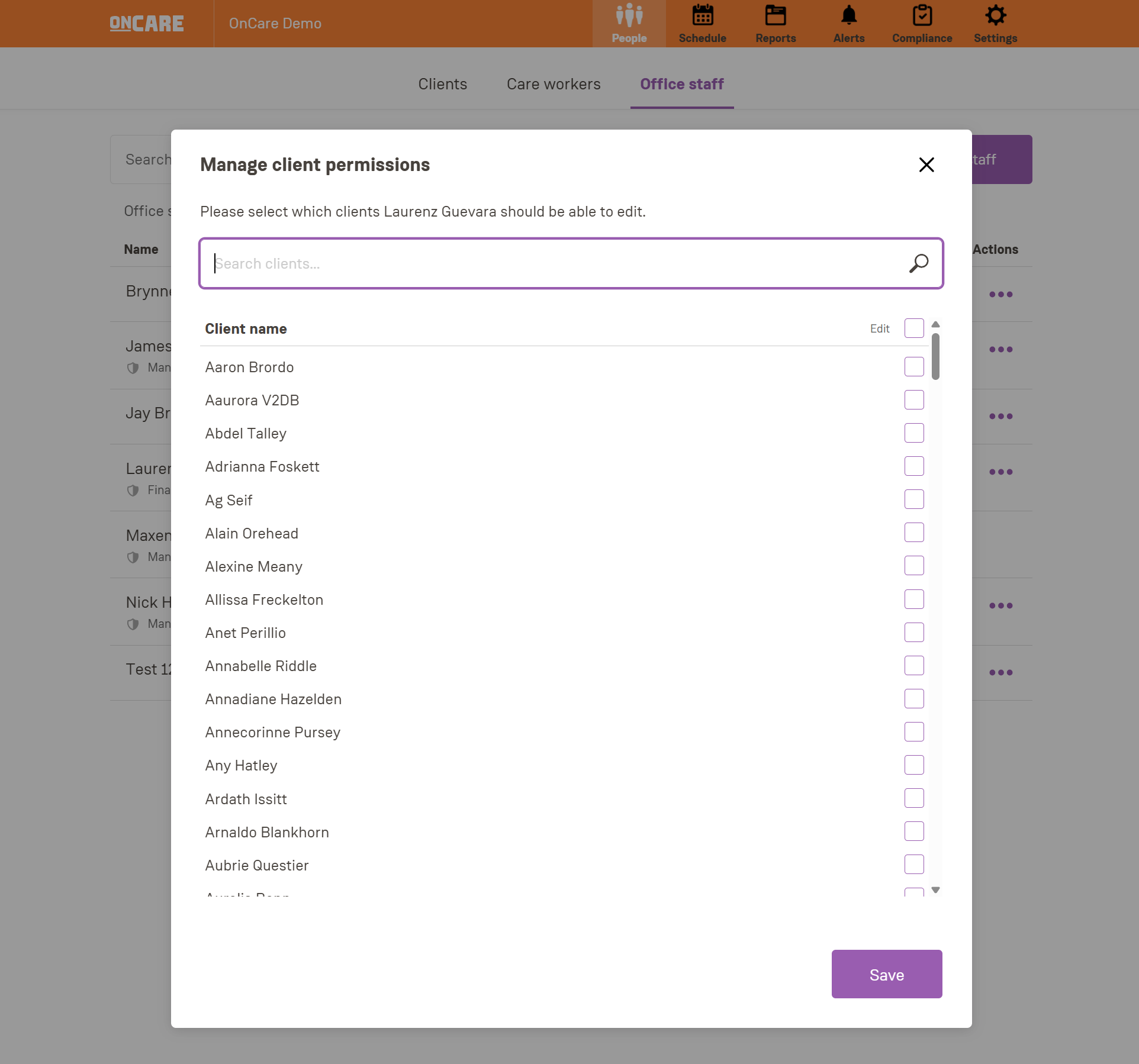
When you set someone to Selected clients, a Manage client permissions pop-up opens on their profile, listing every client in your agency with a single Edit tick-box column. Tick a client to give that person edit access to them, untick to remove it.

Switching a staff member between the three levels does not wipe their previously selected clients.

What edit access controls

Once someone does not have edit access to a client, they can still view that client’s full record, only editing is blocked. Every edit control for a client without access is shown greyed out, with a tooltip explaining why.

Care profile edit access is entirely separate from the Is finance admin? toggle on the same profile page.

Permission history

Every office staff profile a manager can edit has a Permission history card, linking to a full audit log of every Care Permissions change made for that person: who changed it, when, and exactly which clients were affected. Every grant and revoke is logged individually, even for bulk changes like switching to All or No clients.

Permission history, for any staff member including a manager’s own history, is only visible to managers.

if you need any assistance using this feature, please contact your account manager 🟠

Write a comment...

August 12th, 2026

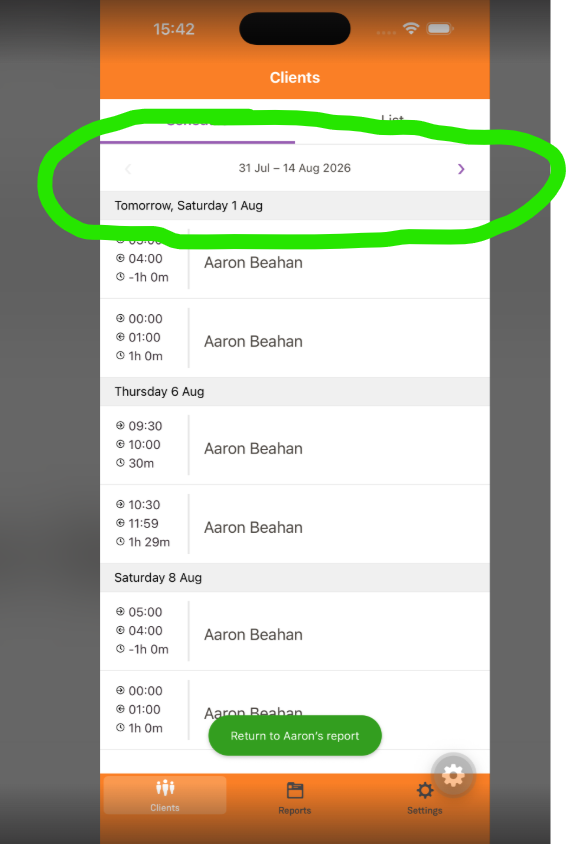
Care workers can now see up to six months of their rota ahead in the OnCare app, instead of the standard two weeks.

This is optional and off by default. If you want it available to your care workers, an office staff member can turn it on in Settings.

Have any questions? Contact your account manager any time.

Write a comment...

August 10th, 2026

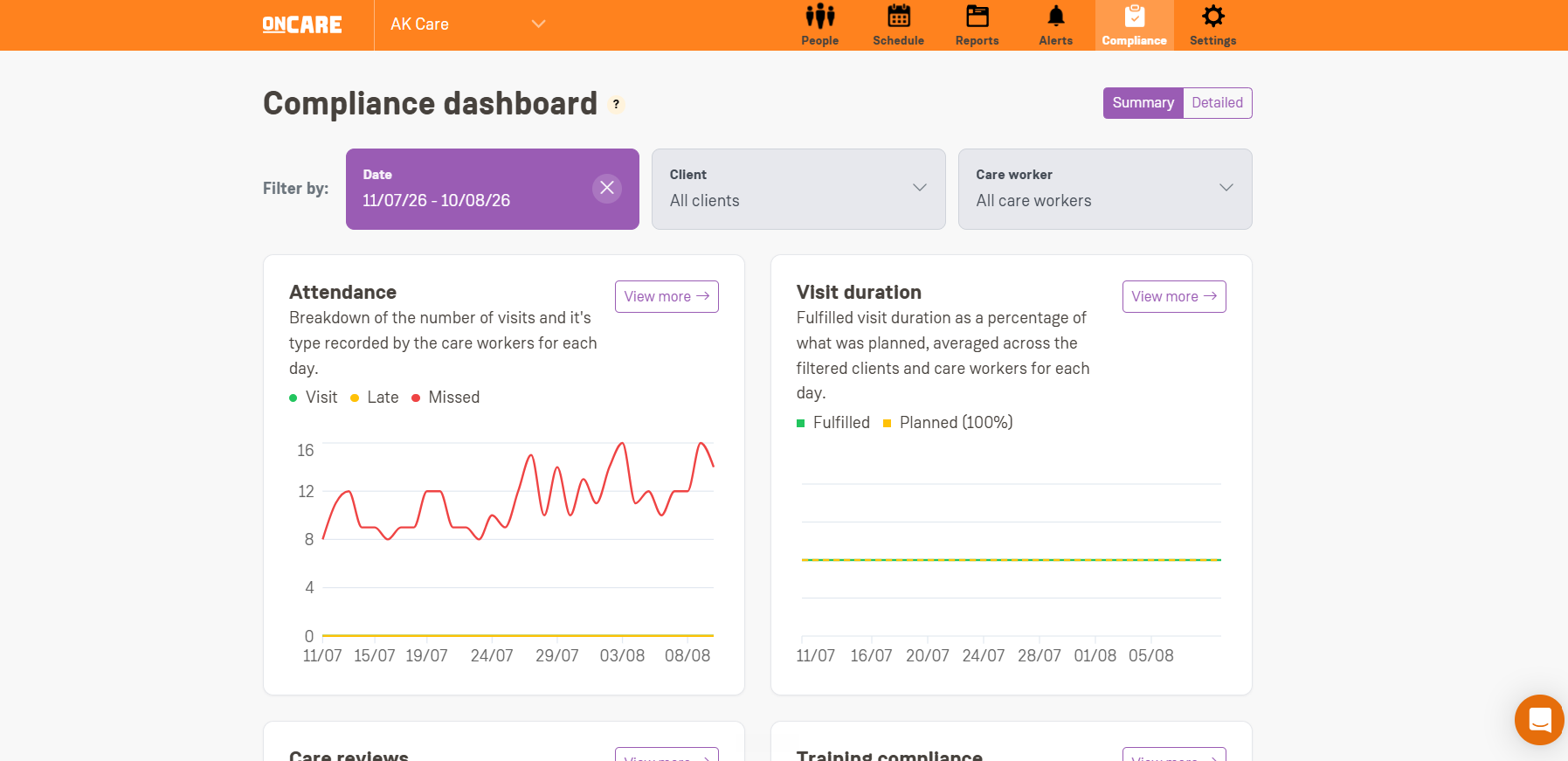
A single dashboard that pulls together attendance, visit duration, care reviews, training compliance, alerts and incidents, so you can see and evidence your CQC compliance without digging through separate tabs.

What the Compliance Dashboard is

CQC inspections are built around five key lines of enquiry, or KLOEs: Safe, Effective, Caring, Responsive and Well-led. Today, showing an inspector you are on top of all five usually means jumping between separate tabs for attendance, visit duration, care reviews, training and alerts, and pulling the picture together yourself.

The Compliance Dashboard puts all of that in one place. It brings together the metrics that matter most for compliance, filterable by date, client and care worker, so you can see at a glance whether your agency is on track, drill into any client or care worker in detail, and export the evidence when you need it. It is built to make audits and day to day compliance checks quicker, not to replace your judgement.

Step 1: Set your filters

At the top of the dashboard there are three filters: Date, Client and Care worker. You can use them in any combination, for example Date on its own, Date and Client, Date and Care worker, or all three together.

  • Most metrics need a Date to be selected before they will show any data. Until you pick one, they display a "Please select a date" message.

  • Care reviews and Training compliance are the two exceptions. They always show a live, agency-wide snapshot as of today, regardless of what Date is selected.

Step 2: Read the metrics

Each metric appears as a card with a title, a short description, headline numbers and a chart. Click View more on any card for a full breakdown, day by day.

Attendance

Tracks how care workers performed against their scheduled visits in the selected period: Total visit (scheduled visits actually carried out, checked in and checked out), Total late (of those, how many started later than scheduled), and Total missed (scheduled visits with no check-in at all). A visit that is still in progress is not counted as either completed or missed until it finishes.

Visit duration

Shows Avg. fulfilled, the average percentage of the planned visit length that was actually delivered, across completed visits in the period. A dashed line at 100% makes it easy to see which days ran short or long against schedule. Days with no completed visits are shown as 100% rather than 0%, so a quiet day does not look like a problem.

Care reviews

A live, whole-agency snapshot of every client's care plan review status: Overdue, Due soon, Up to date and Not started. The Due soon window is the same setting used on the Care reviews page (Settings, Care review settings, "How far in advance should reminders be sent?"), so changing it there changes what shows here too.

Training compliance

A live, whole-agency snapshot of every staff member's course completion status, sourced from Florence Academy: Completed, On track, Expiring soon, Overdue and Incomplete. The card notes when training data was last synced from Florence, which happens on an hourly basis.

Note

Florence Academy must be enabled for your agency for this card to appear.

Alerts

Total unresolved and Total resolved alerts raised in the period, whatever the reason (late visit, missed medication, distance/geofencing, or a flagged visit report). Resolved and unresolved reflect the alert's current status, not its status on the day it was raised, so the numbers can shift as your team works through them.

Alert types

A proportion breakdown of why alerts were raised in the period: late visits, medication alerts, distance alerts and report alerts. A toggle underneath switches the whole chart between Unresolved and Resolved.

Incident trend

Total incidents logged by care workers during visits in the period, shown as a daily chart so you can spot when incidents cluster rather than just seeing an overall count.

Step 3: Drill into a day, a client or a report

Click View more on a card to see a row for every day in your selected range. Click a row to see the detail for that date, and use View report to go straight to the underlying visit report where relevant.

Training compliance and Alert types work slightly differently: View more on those takes you to the existing Staff training matrix and Alerts pages instead, since that is where the fuller detail already lives.

Why a day might be missing from the list

The detail page only shows rows for days with at least one valid piece of data, for example at least one visit. A day with nothing to report will not appear as a row, even though it is still shown as 0 on the chart.

Step 4: Switch between Summary and Detailed

In the top right of the detail page you can switch between Summary (two cards per row) and Detailed (one card per row, with a total sum for the metric across your selected date range).

Step 5: Export and share

Attendance, Visit duration, Care reviews, Alerts, Incident trend and Alert types can all be exported. Click Download next to the metric name to get a CSV of every row currently on screen, for your own records or for an inspector.

  • CSV exports are capped at 92 days per export, to keep the load on our servers reasonable. For a longer period, export in smaller chunks.

  • There is also a search bar on the detail page that filters rows by the date you type in.

Shareable, filtered links

Whatever filters you have selected are saved into the page URL. That means you can copy the link and send it to a colleague, and they will land on the same filtered view, for example the same date range and client.

Need help?

If you have any questions about the Compliance Dashboard, contact your account manager at any time.
Write a comment...

July 27th, 2026

We have launched Schedule Auditing, a new way to track every change made to your schedule, so you always know who changed what and when.

With Schedule Auditing you can:

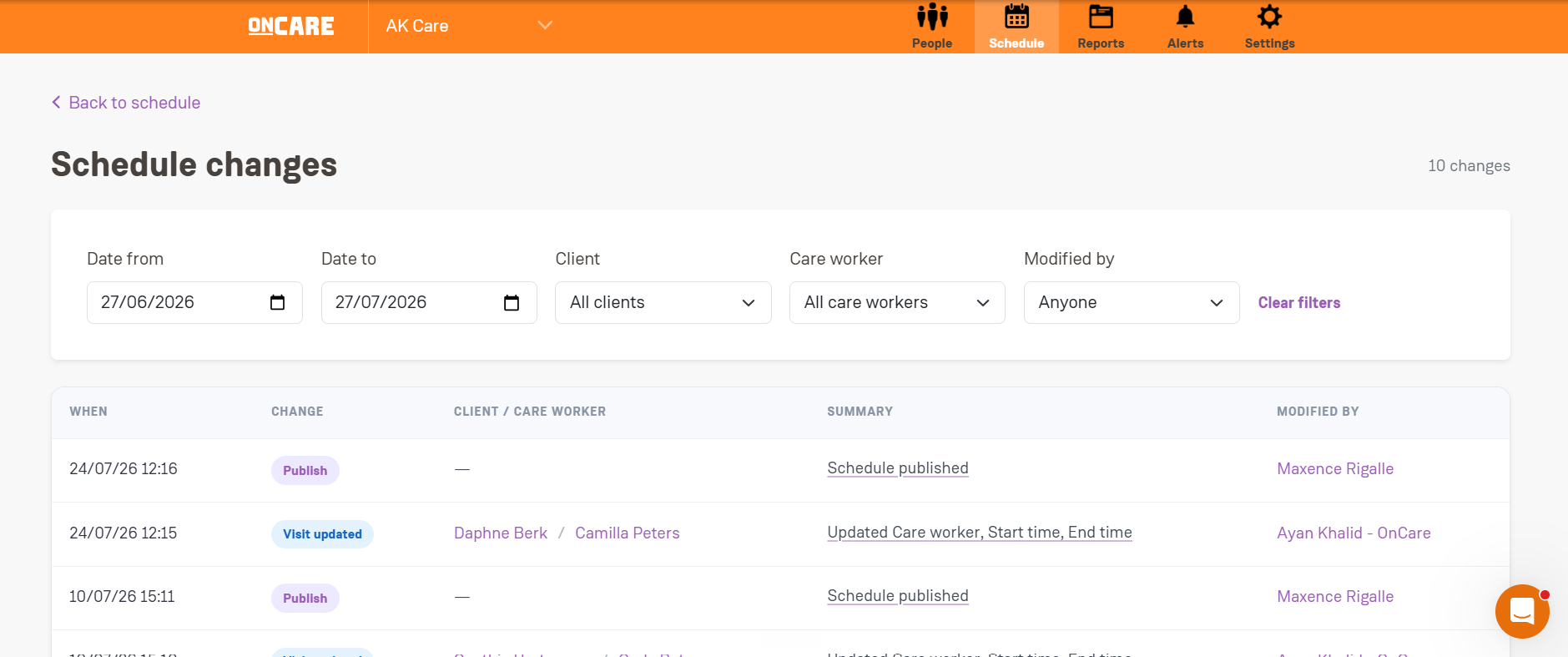
  • See a full change history of the rota, with the date and time of each change, what changed, whether it was published, and the client and care workers involved.

  • Filter the history by date, day, client, care workers, or who made the change.

  • Open any change to see the full details in a pop-up, with a Previous and New comparison so you can see exactly what was updated and by whom.

This means better tracking, clearer accountability, and stronger CQC compliance.

Why this matters

Before, changes were made to the schedule but there was no way to know who made them or when they happened. If a mistake was made, it was very hard to trace it back, correct it, and speak to the right person. Schedule Auditing gives you a complete, time-stamped record of every change, so you can fix issues quickly and keep clear evidence for CQC.

How to open the schedule change history

Go to the Schedule tab. In the top right of the screen, next to Publish, you will see an Auditing button. Click it to open the full schedule change history.

Filtering the history

If you are looking for a specific change, you can filter the history by:

  • Date from

  • Day

  • Client

  • Care workers

  • Modified by

The change history table

The history is shown as a table with five columns:

  • When it was changed: the date and time of the change.

  • What changed: a summary of the change.

  • Published: whether the change has been published to care workers.

  • Updated client: the client the change relates to.

  • Care workers: the care worker or care workers involved in the visit.

The summary gives you a quick overview of each change, including the schedule, whether it is published, what was updated, the care workers, the start time, the visit time, and the office staff member who made the change.

Viewing the full details

Click the summary link for any change to open a pop-up with the full details:

  • Time of change

  • Client

  • Care worker

  • Additional care worker

  • Start time

  • Visit time

  • Modified by (the office staff member who made the change)

The pop-up also shows a Previous and New comparison, so for each field you can see exactly what it was before the change and what it was changed to.

Need help?

The full step-by-step guide is available in the Help Centre. Have any questions? Contact your account manager any time.

Write a comment...