Care Permissions - Control Who Can Edit Each Client's Record
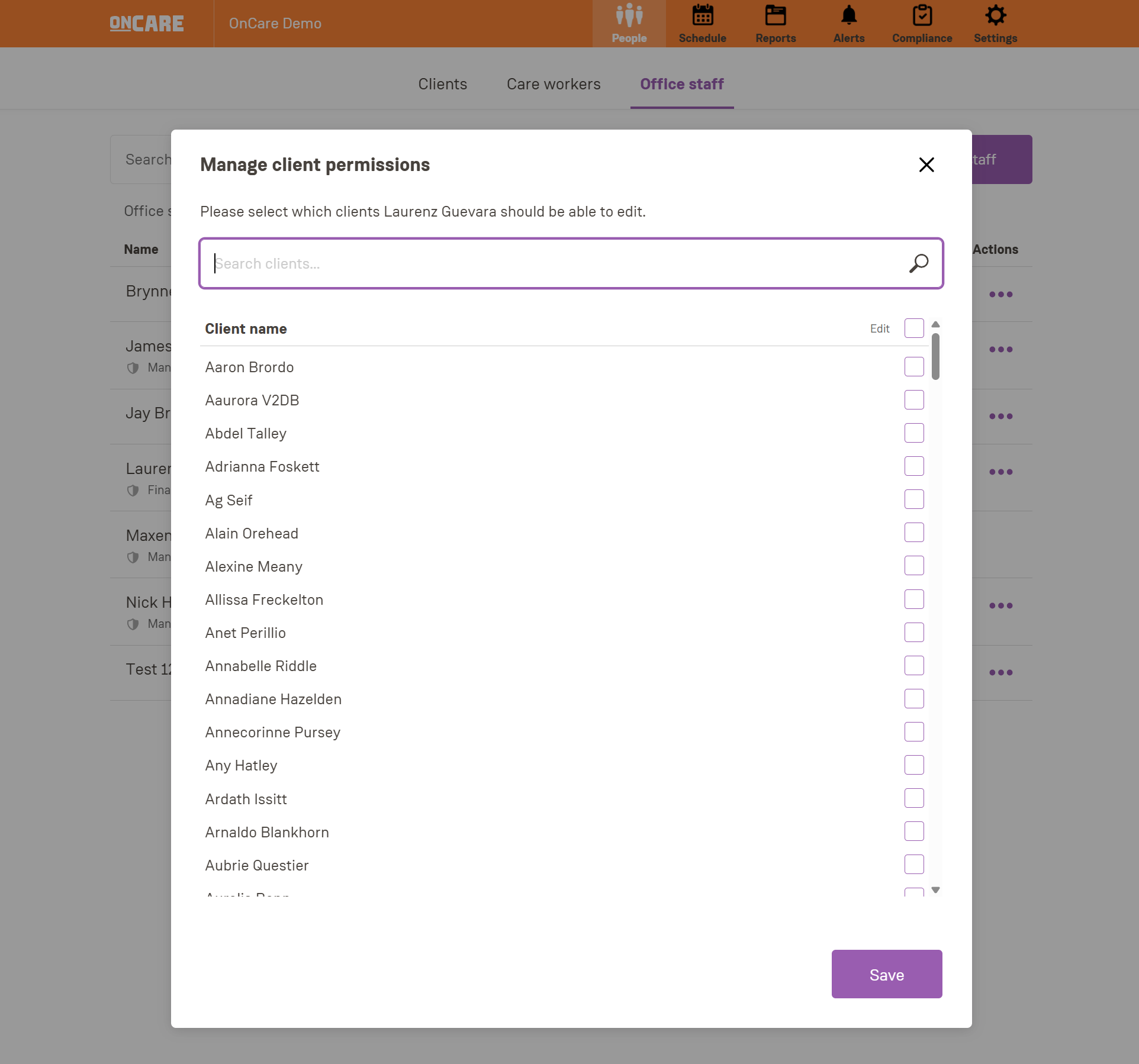
We’ve released Care Permissions, a more in-depth way to control which clients an office staff member is allowed to edit. It only ever affects editing, viewing a client’s full care profile is always available to every office staff member, with no exceptions and no configuration needed.
This gives you tighter control over who can change what in a client’s record, without restricting who can simply look at it. For example, you can let a newly onboarded coordinator see everything so they can get up to speed, but only let them make changes for the handful of clients they have actually been assigned, while everyone else’s records stay uneditable to them until a manager opens them up.
What it covers
Care Permissions controls edit access to these areas of a client’s record: Summary, Care Plan, Risk Assessment, Reviews, Communication log, Medication, Key contacts, Documents, Reminders, Groups, and Friend/family (decision maker) access.
It does not touch Rota/scheduling, Visit Reports, or Invoicing, those are governed by separate permissions.
Who this applies to
Care Permissions is an office staff setting only. It has no effect on care workers, their access to a client is entirely based on whether they are rostered to that client, a separate and unrelated part of the product. Decision makers and clients are unaffected too.
Set a staff member’s Care profile permission
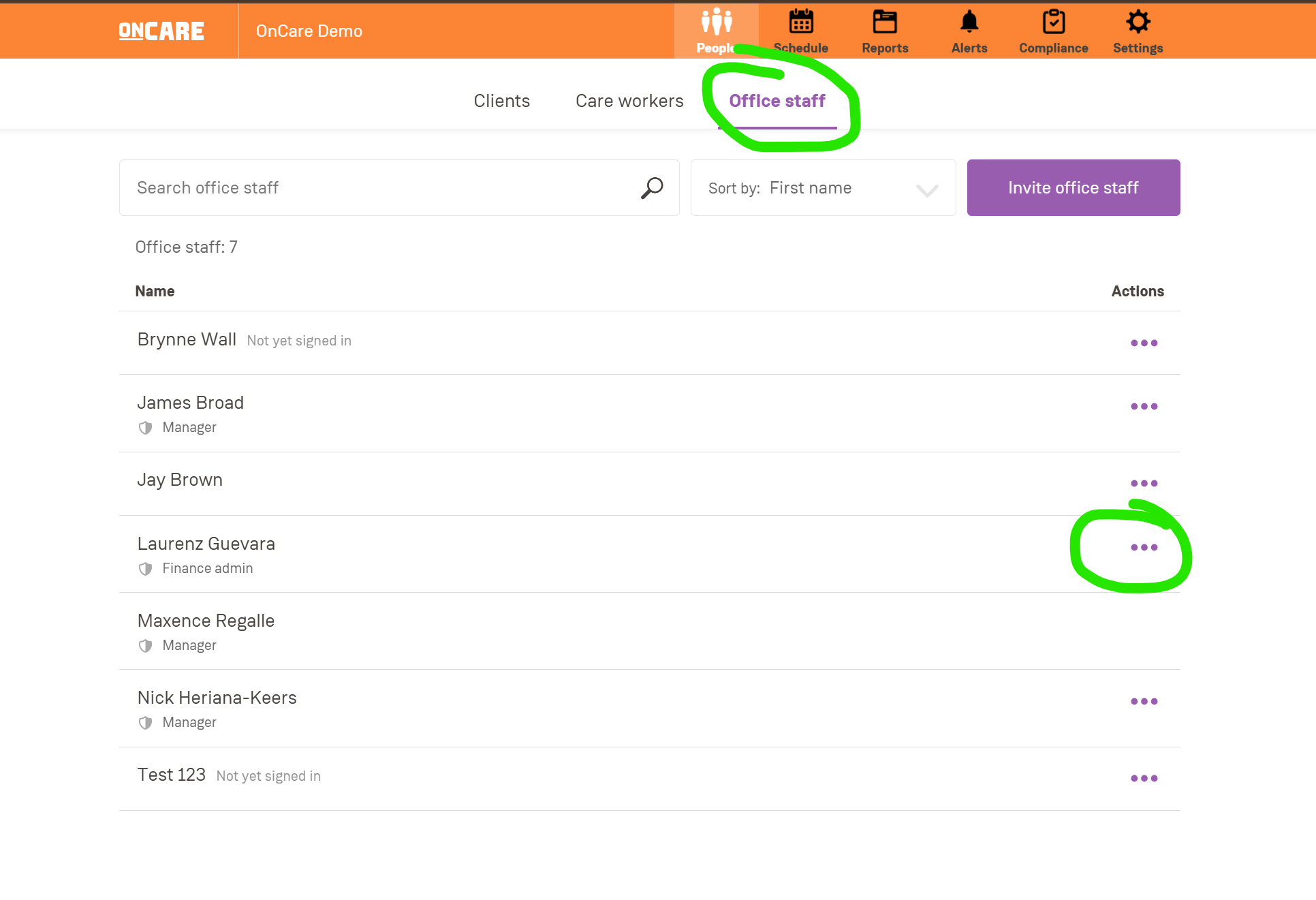
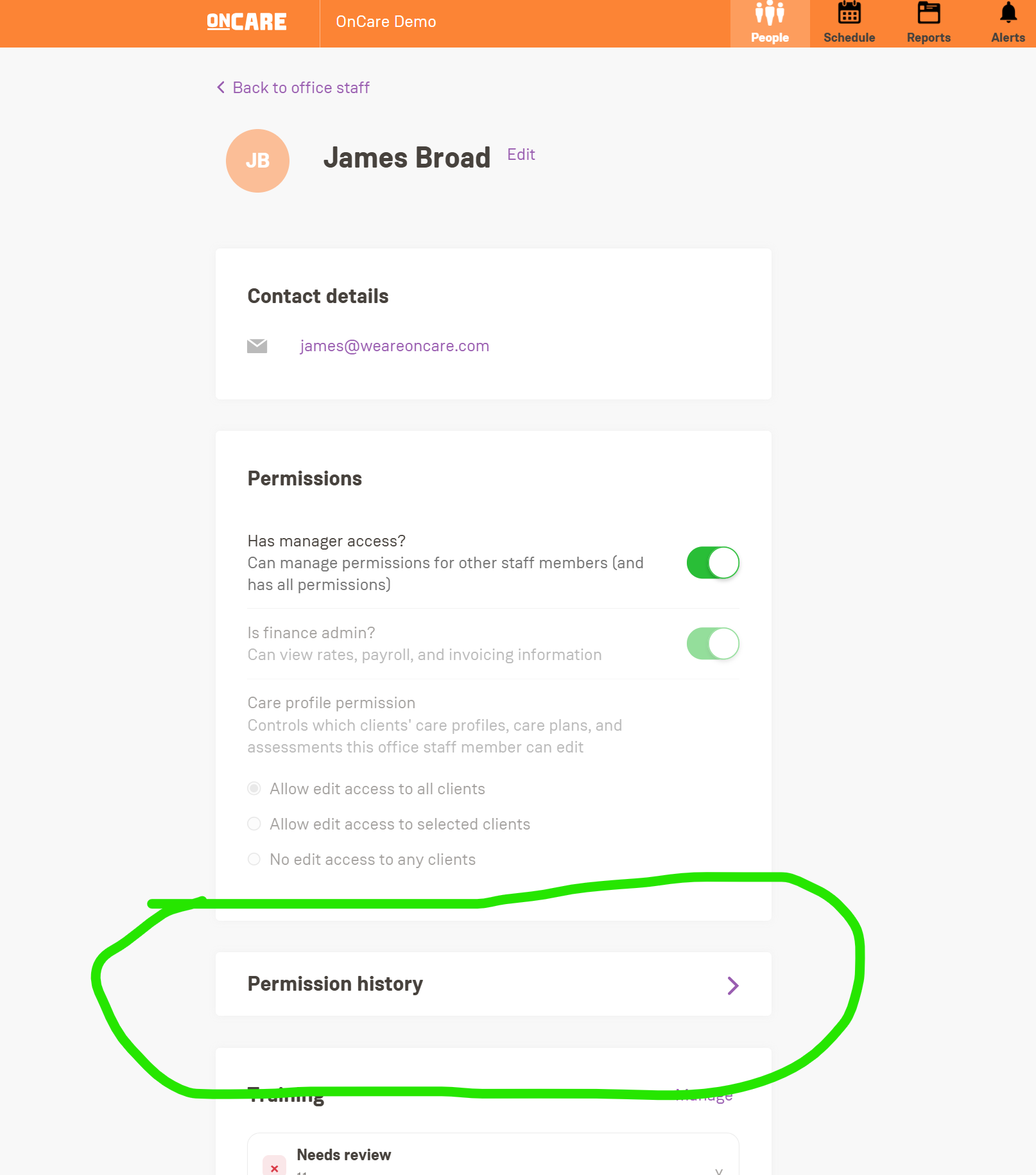
Go to People, then Office staff, and open the staff member’s profile. Under the Permissions section you will see a Care profile permission setting with three options:
All clients: can edit every client’s care profile. This is the default for every new office staff member.
Selected clients: can edit only the specific clients a manager has ticked for them. Every other client is view-only for that person.
No clients: can view everything, but can’t edit anything.
Managers always have full access
Anyone with manager access always has full edit access to every client, regardless of this setting. On a manager’s own profile the three options are shown greyed out and disabled, because there is nothing to configure. You can edit configuration inside the office staff you want to change. Only a manager can see this section.
Choose specific clients
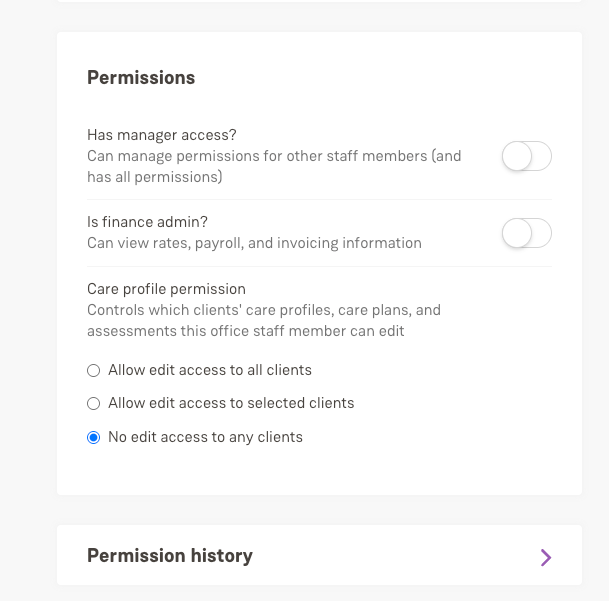
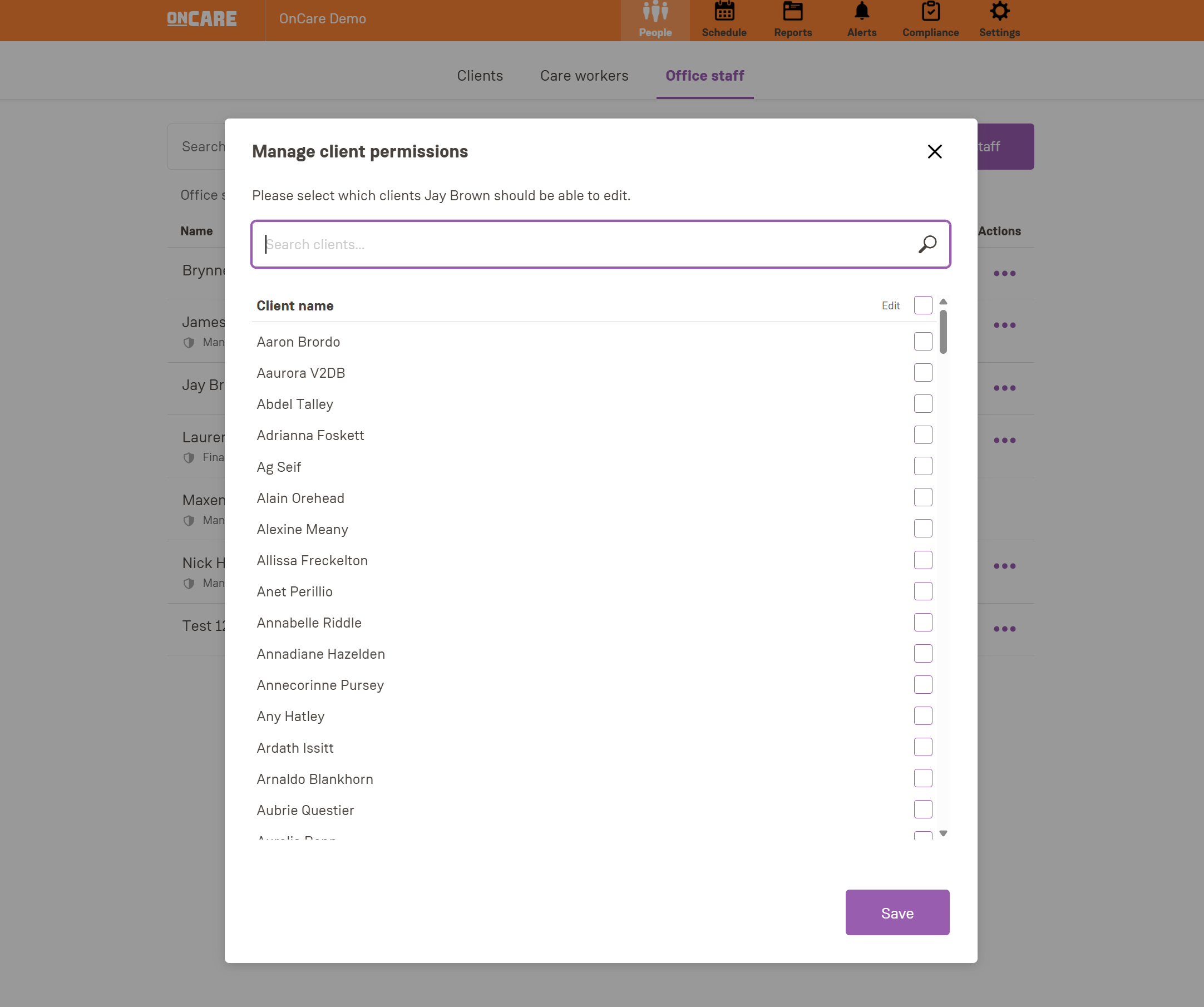
When you set someone to Selected clients, a Manage client permissions pop-up opens on their profile, listing every client in your agency with a single Edit tick-box column. Tick a client to give that person edit access to them, untick to remove it.
Switching a staff member between the three levels does not wipe their previously selected clients.
What edit access controls
Once someone does not have edit access to a client, they can still view that client’s full record, only editing is blocked. Every edit control for a client without access is shown greyed out, with a tooltip explaining why.
Care profile edit access is entirely separate from the Is finance admin? toggle on the same profile page.
Permission history
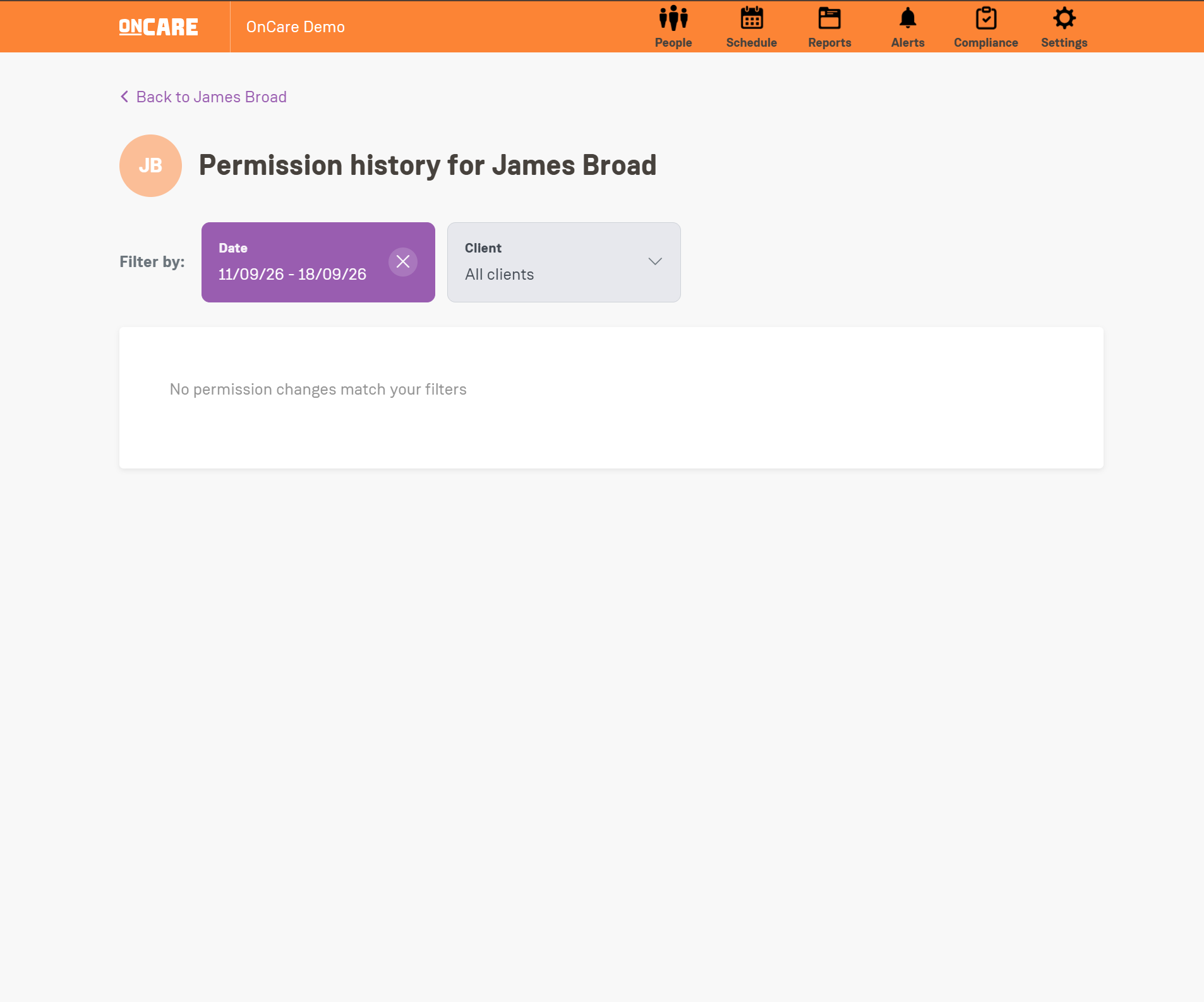
Every office staff profile a manager can edit has a Permission history card, linking to a full audit log of every Care Permissions change made for that person: who changed it, when, and exactly which clients were affected. Every grant and revoke is logged individually, even for bulk changes like switching to All or No clients.
Permission history, for any staff member including a manager’s own history, is only visible to managers.
if you need any assistance using this feature, please contact your account manager 🟠